
Portraits
Add subtle expression, hair, and camera movement to a still portrait.
Image to video AI
Turn any photo into a video with AI. Free to use with no sign-up required. Generated videos include synchronized audio.
Use cases
Give photos, product visuals, and illustrations a new sense of motion.
Add subtle expression, hair, and camera movement to a still portrait.
Reveal material and shape with a slow, polished product-camera move.
Bring a character, outfit, or background to life without losing the original style.
Animate rain, light, and passing movement to retain the atmosphere of a place.
Use a gentle camera move to reveal depth, light, and the shape of a space.
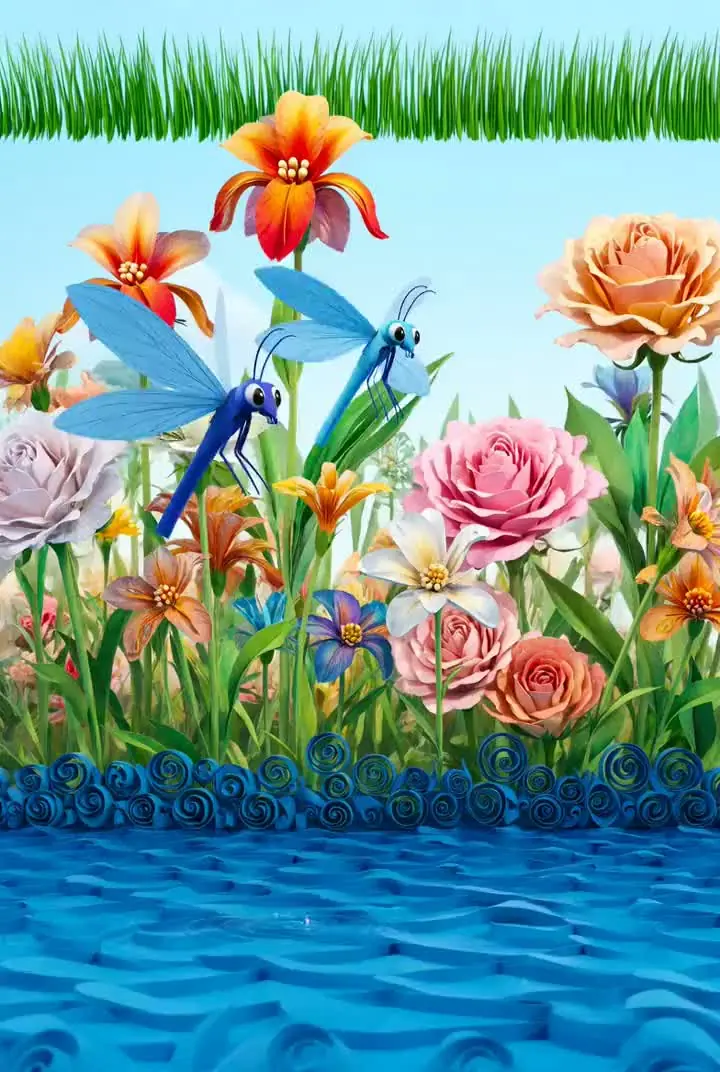
Add gentle light and ambient motion to flowers, books, food, and everyday scenes.
How it works
Upload one image, describe the motion, and save the result with audio.
Upload a photo, product visual, or illustration you want to animate.
Write the camera movement, subject motion, and atmosphere in plain language.
Preview the audio-backed result and download it when it is ready.
Model
Grok Imagine and the Veo 3.1 family are available in one image-to-video workflow. Start with a no-sign-up trial, then choose the model that fits your quality, speed, and budget. Required credits are shown before generation.
Free trial with no sign-up. Additional models are available after sign-in with credits, which vary by model, duration, and resolution.
 Veo 3.1Fast · Quality · Lite
 SeedanceGemini Omni
 Kling Video
 Minimax
01
Image-to-video generation works best when the still image already has a clear subject and composition. You do not need to describe every pixel. Start by naming the subject, the direction of movement, and the camera action. For a portrait, choose one or two priorities such as a slow push-in, a soft expression change, moving hair, or a shifting background. A short, focused instruction is usually easier to refine than a long list of effects.
Motion does not need to be dramatic to make an image feel alive. Product images and portraits often benefit from a slow camera move, subtle blinking, a small change in light, or a restrained environmental detail. Create a short version first, review whether the original composition remains intact, then change one instruction at a time. This keeps the next generation tied to a clear creative decision instead of random trial and error.
02
When a generated video includes audio, describe the atmosphere as well as the visible action. A street scene might need restrained city ambience; a product shot may need quiet sound that supports the material and pace; a character scene can use a mood that fits the setting. Explain the intended use and feeling instead of asking the model to reproduce a specific song, recording, or third-party voice.
Avoid packing every possible instruction into the first prompt. Begin with a camera move, one subject action, and a simple audio direction such as a soft breeze or calm indoor ambience. After reviewing the result, add detail about tempo, emotion, or sound intensity only where it improves the scene. This prompt-by-prompt approach gives you a clearer reason for each regeneration and makes results easier to compare.
03
Pick an uploaded image with a visible subject and a composition that does not rely on tiny text or difficult-to-read details. Photos, product visuals, and illustrations can all work when the part you want to animate is easy to identify. JPEG, PNG, and WEBP uploads are supported. Keep your own source copy as well, particularly when the image will become part of a campaign, product page, or editorial workflow.
You are responsible for checking rights before publishing or selling a generated video. The ability to animate an image does not grant permission to use people, logos, characters, buildings, or material created by someone else. Review the Terms and any applicable law, and avoid using a person’s likeness, trademark, copyrighted work, or third-party source asset in a way that you are not entitled to use.
04
The no-sign-up trial is intended to help you test whether your image and motion prompt fit the task. Review the result, then adjust one creative choice at a time. The FAQ explains the free-use conditions and how unsuccessful attempts are handled, so the first experience stays clear without describing the product as unlimited access to every setting.
After signing in, you can select credit-based video models for additional options and repeat generation. The product shows the required credits for the active model, resolution, and duration before you submit. New models can be added to the shared model registry without creating a second pricing rule in the marketing page, so the visible estimate and the server-side charge continue to use the same source of truth.
Start with the free Image to Video AI trial, then choose a monthly, yearly, or credit package for additional image-to-video generations. Each plan shows its price and included credits before checkout.
For additional video models, the generator shows the credits required for the selected model, resolution, and duration before you create a video.
Image-to-Video Workflows
See how different creators can fit image-to-video with audio into an everyday workflow.

I upload a travel photo, start with a gentle camera move, and listen for the scene’s atmosphere in the audio-backed result. The free trial gives me a simple first pass.

I use a product still to test one motion idea before asking for more versions. Once signed in, I choose the model, duration, and resolution that fit the specific deliverable.

I compare how the same product image reads with different motion prompts. Seeing the credit requirement before generation makes it easier to select a setting for each product page.

I turn a campaign image into a short video when I need a moving draft for a post. Having sound in the first result helps me judge the overall pace early.

I use small movements in the character and background to see whether an illustration wants to become a scene. I keep the first attempt short, then refine the useful direction.

I make an early animated version of an event visual by describing the camera motion and mood. For later variations, I can choose a model and settings with credits after signing in.
FAQ
Yes. You can generate one free video every day without signing up.
Yes. Audio is included in the generated image-to-video result.
No. A video that does not complete successfully does not consume the daily free allowance.
JPEG, PNG, and WEBP images are supported. Use images you own or have permission to use.
Commercial use may be allowed under the Terms. You are responsible for checking rights related to people, trademarks, characters, and source images.
The free trial provides one no-sign-up video daily. After signing in, you can choose additional models, resolutions, and durations with credits.
After you sign in and select a model, duration, and resolution, the generator shows the required credits and your current balance before submission.
The generator shows only the ratios, durations, and resolutions supported by the active model. Available settings differ by model.
Yes. When a video is complete, preview it in the player and download it. Save important results before publishing or editing.
Processing time varies by model, video settings, and demand. Keep the page open to see the result, or use the signed-in history to check progress.
Try the free image-to-video generator today. No account needed to get started.